
Encountered a Device disconnected or No devices connected problem when using Huion products, but don't know how to fix it? Don't worry! This tutorial will help you.
Version 20 Drivers:
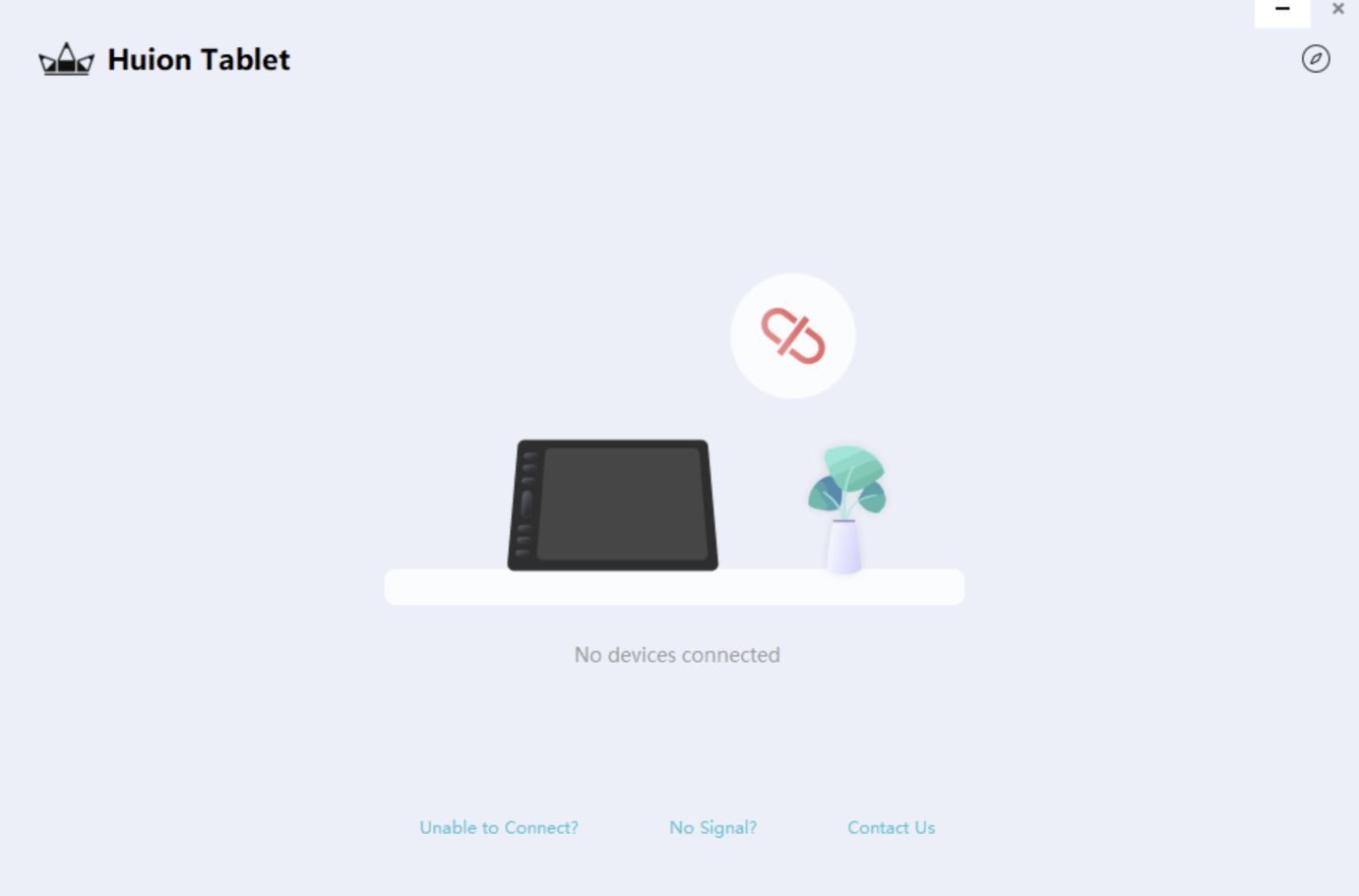
Version 15 Drivers:

Version 14 Drivers:

Either of the following reasons causes this issue:
- The driver was not installed correctly
- The cable was not connected properly
- The USB cable or the computer's USB port is damaged or loose
- The USB adapter you are using is faulty.
- The computer system lacks specific components
- You installed more than one of our tablet drivers.
- You installed the incorrect driver version.
- Using wired and wireless connections simultaneously (on graphic tablets with wireless connectivity).
Method 1. For Pen Display Users
- If you are using a pen display with a 3-in-1 or 3-in-2 cable, ensure that the black USB cable is securely connected to the computer.
Method 2. For Windows Users
- For Windows users, run the driver with administrator privileges, then restart the driver software.
- Right-click the driver installation file, then click "Run as administrator".
- Or follow the steps below:
- For Version 15 drivers, go to Settings > General tab > click the "Administrator privileges" button.
- For Version 14 drivers, click the "Administrator Privileges" button at the bottom of the driver interface.
- For Version 12 drivers, tick "SupportTabletPC" on the driver interface. If it is grayed out, try uninstalling and reinstalling the driver. If that won't work, provide your tablet's serial number and operating system to service@huion.com for further help.
NOTE: In driver versions 15 and 14, the "Administrator privileges" button disappears after you click it. If the driver already has the necessary access, the button will no longer be visible.
- If your Windows computer runs on an ARM processor, please email us at service@huion.com to request an ARM-compatible driver, except for driver version v20.0.1.118. This version is ARM-compatible.
NOTE: Before installing v20.0.1.118, ensure your tablet is compatible with this version. Check our Download Center.
Method 3. Uninstall and reinstall the driver
- Uninstall the driver - Uninstall old drivers and all other tablet drivers, whether from Huion or other brands.
- Unplug and re-plug the USB cable. Please check whether the cursor works correctly without a driver. If the cursor works normally, that means the hardware has no problem. (Skip this step when using MacOS Catalina or later since our devices won't work on these operating system versions without the driver.)
- Reinstall the driver. If the hardware has no problem, please check if you have installed the driver correctly. You can visit our official website (https://www.huion.com/download) to download the correct driver for your tablet and reinstall it. For instructions on how to install the driver correctly, please check the following articles:
NOTE: Ensure your tablet is not connected to your computer, your antivirus is turned off, and all your drawing programs are closed while installing the driver.
Method 4. Troubleshoot USB cables and ports.
If the two methods above don't work, please try these steps:
- Graphic Tablet or Pen Tablet Users
- Touch the pen on the tablet's surface and check whether the pen indicator lights up. If the light turns on, the tablet, USB cable, and the computer's USB port are working normally. Thus, the issue is likely caused by other factors.
- Otherwise, try a different USB port or replace the USB cable.
- If you are using a desktop computer, it is generally more reliable to plug into the rear USB port.
- If you are using an adapter or hub, connect the tablet directly to your computer, if possible, or replace the adapter with a working one.
- When testing with another USB cable, make sure it is a data cable that supports both power and data transfer, as charging-only cables will not establish a proper connection between the tablet and your computer.
- Tablet Display or Pen Display Users
- Try a different USB port on your computer, or replace the USB cable if you have a spare one. If you use a desktop computer, plug it into a rear USB port. If you are using an adapter or hub, connect directly to your computer, if possible, or replace the adapter with a working one.
Method 5. Use another computer to test.
If you installed the driver properly but the problem persists, test on another computer with or without the driver installed.
- If it works on another computer, the previous computer may be missing components, which causes the driver to fail to connect.
- If you have previously installed a tablet driver, whether ours or from another brand, there may be a conflict. Please completely remove all files and folders associated with the previous tablet driver.
Method 6. Replace the Wintab32.dll file (for Windows users)
A corrupted Wintab32.dll file may also cause the "Device disconnected" error if you can move your mouse cursor with your pen. If so, follow the steps in this article: Issues with WinTab32 DLL File.
If you have tried all the methods mentioned above, but the driver still shows "Device disconnected" or "No devices detected", and the pen won't move after uninstalling the driver, the cable, your tablet port, or the tablet itself may be damaged. If so, please contact our support staff at service@huion.com for further assistance and provide the following information:
- Serial number (found on the back of your tablet, which starts with S/N)
- Order number
- Computer operating system and version
- Driver versions (found in the driver > go to Settings > About tab)
In some instances, our support staff may need to access your computer remotely.