
In some cases, to improve our product's performance, we will release new firmware. If you are wondering whether the firmware version on your Huion product is the latest, the guidelines below will help you. This article will show you how or where to check the firmware version of your Huion products.
For V20 Driver
1. Open the driver panel and go to "Settings" > "Device Settings".
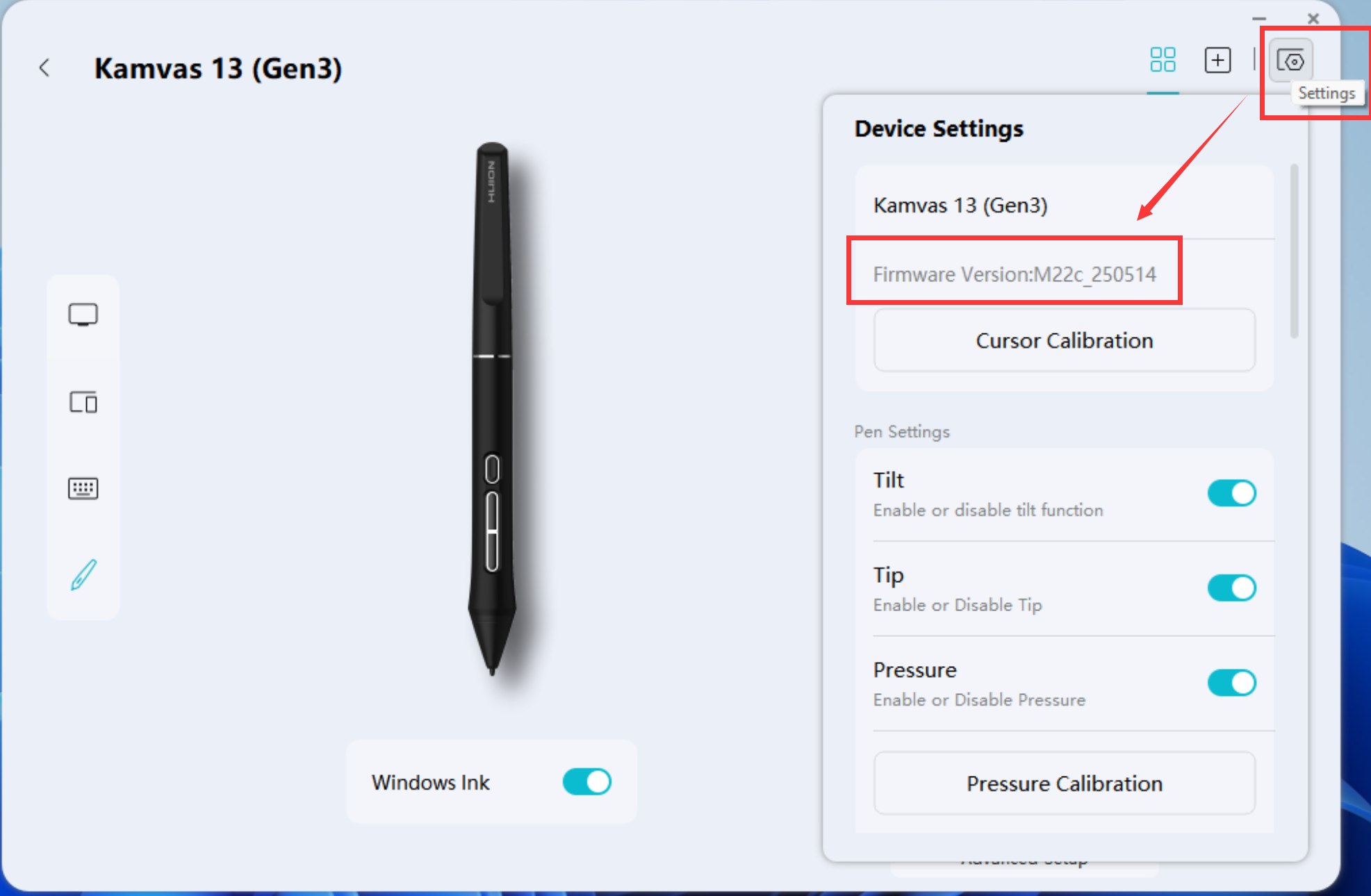
2. Contact Huion Customer Support through service@huiontablet.com and provide the following information so our customer support team can assist you in confirming whether you have the latest version or not:
- Product serial number
- Firmware version
For V15 Driver
1. Open the driver panel

2. Contact Huion Customer Support through service@huiontablet.com and provide the following information so our customer support team can assist you in confirming whether you have the latest version or not:
- Product serial number
- Firmware version
For V14 and V13 Drivers
1. Open the driver panel

2. Click About and press the following four keys in sequence on the keyboard: "Ctrl" + "v" + "e" + "r" (make sure the device shows "Device connected"; otherwise, this won't work) 
3. Contact Huion Customer Support through service@huiontablet.com and provide the following information so our customer support team can assist you in confirming whether you have the latest version or not:
- Product serial number
- Firmware version