These steps are applicable to Kamvas Pro 24 (Gen 3) (GT2402) and Kamvas Pro 27 (144Hz) (GT2702). If you have the Kamvas Pro 19 (GT1902) or Kamvas Pro 27 (GT2701), please contact our support team at service@huion.com for further assistance.
When the touch function on your Kamvas Pro 24 (Gen 3) or Kamvas Pro 24 (144Hz) is not working on your Mac computer, please follow these steps:
- Turn on the touch switch
Slide the switch to the right to enable the finger touch function.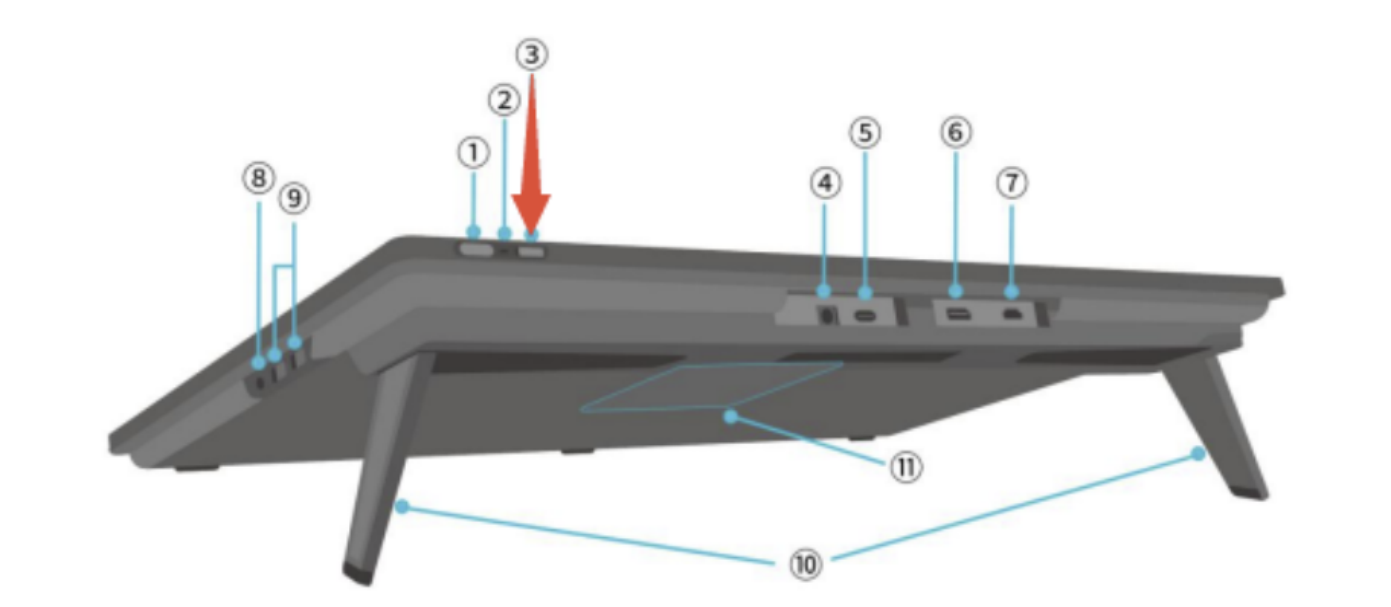
- Enable touch in the driver.
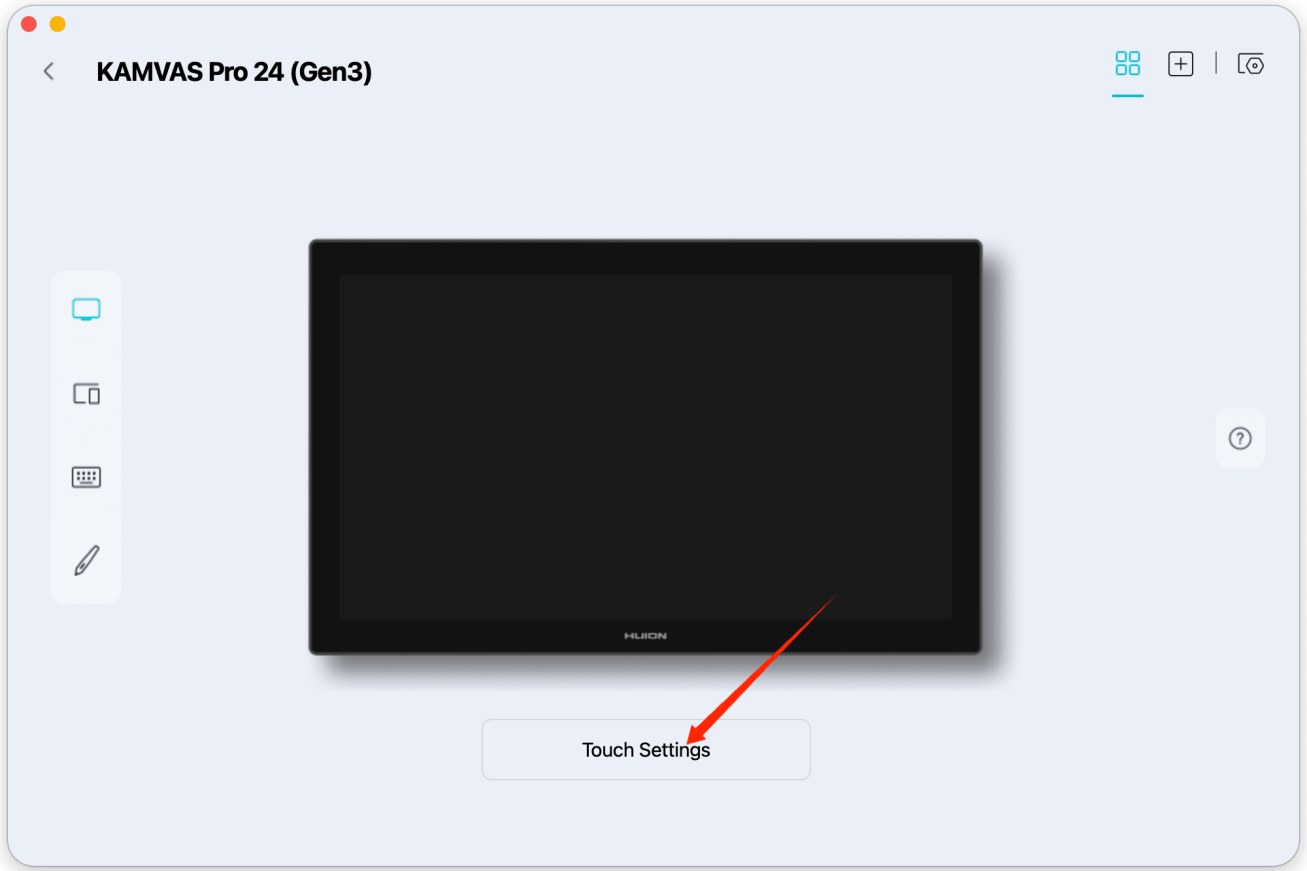
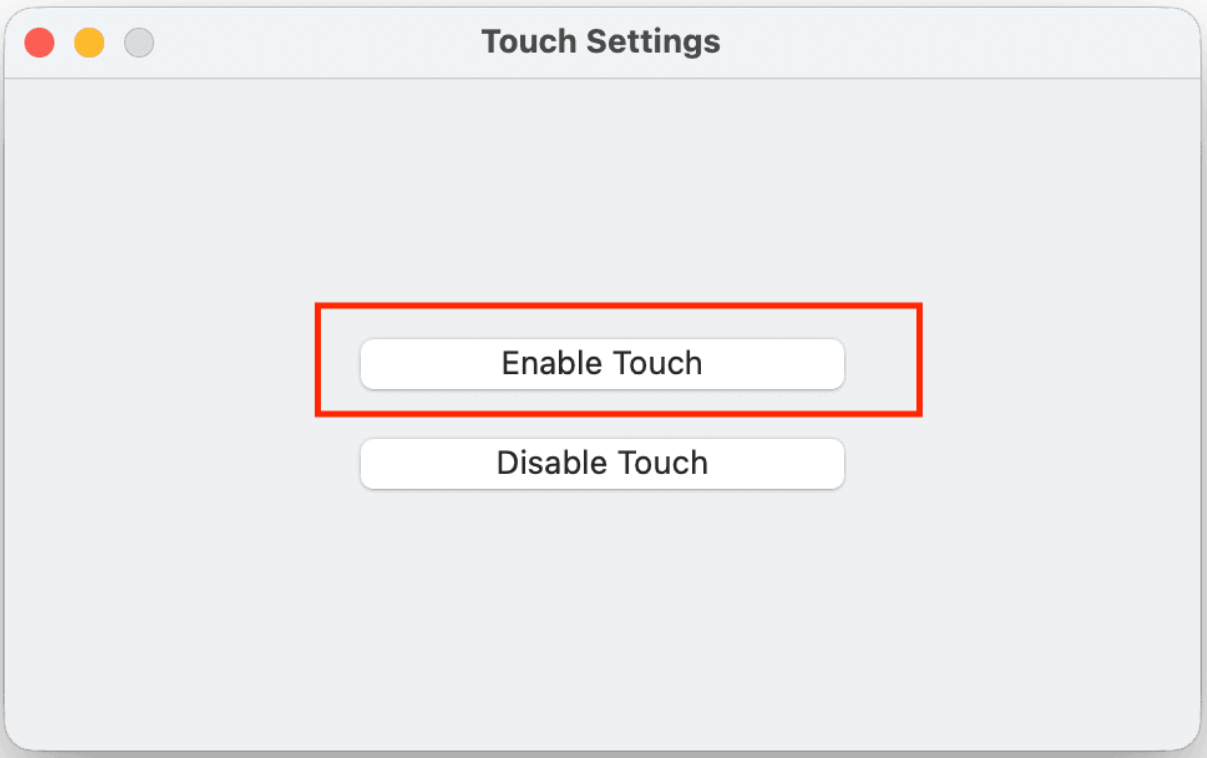
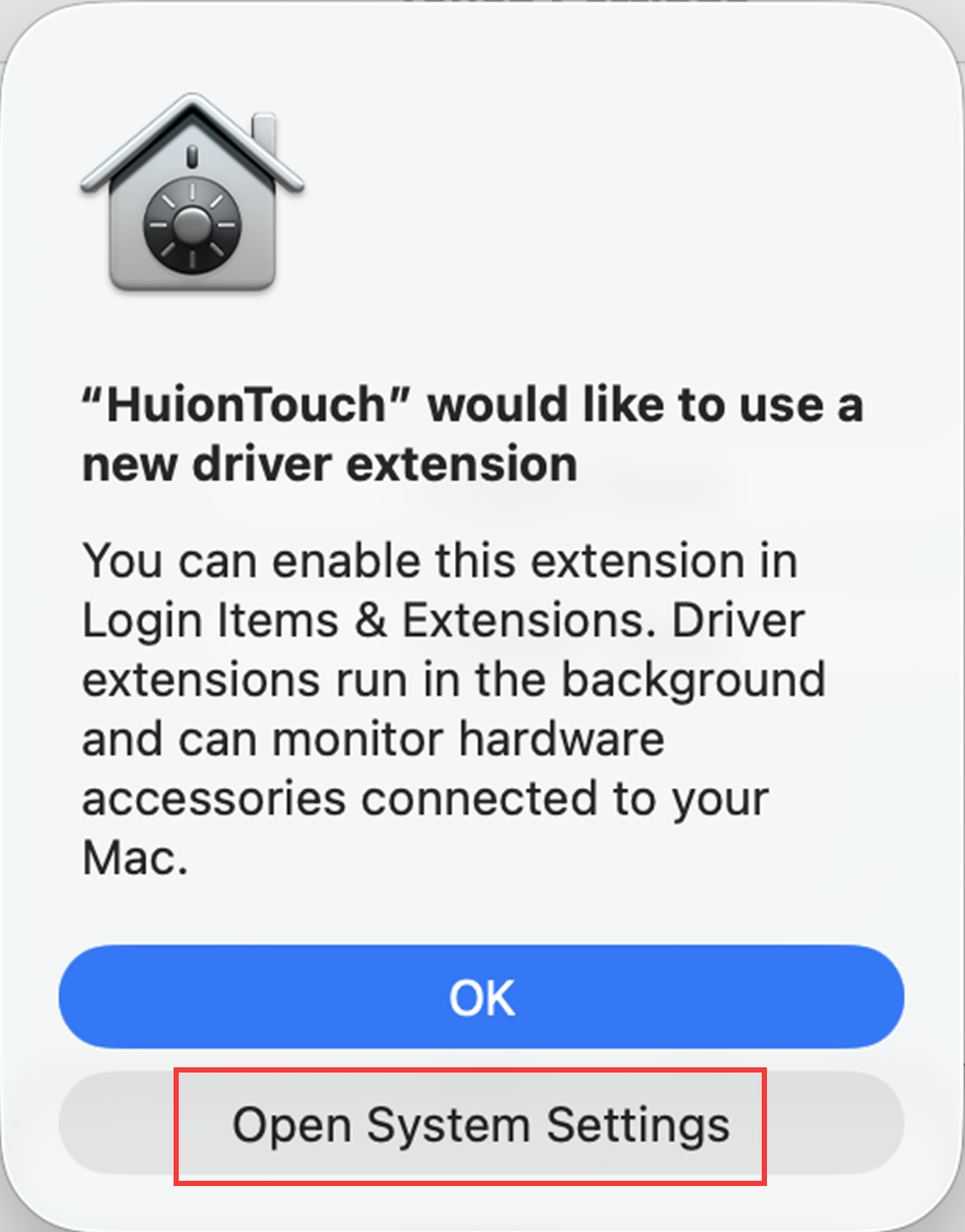
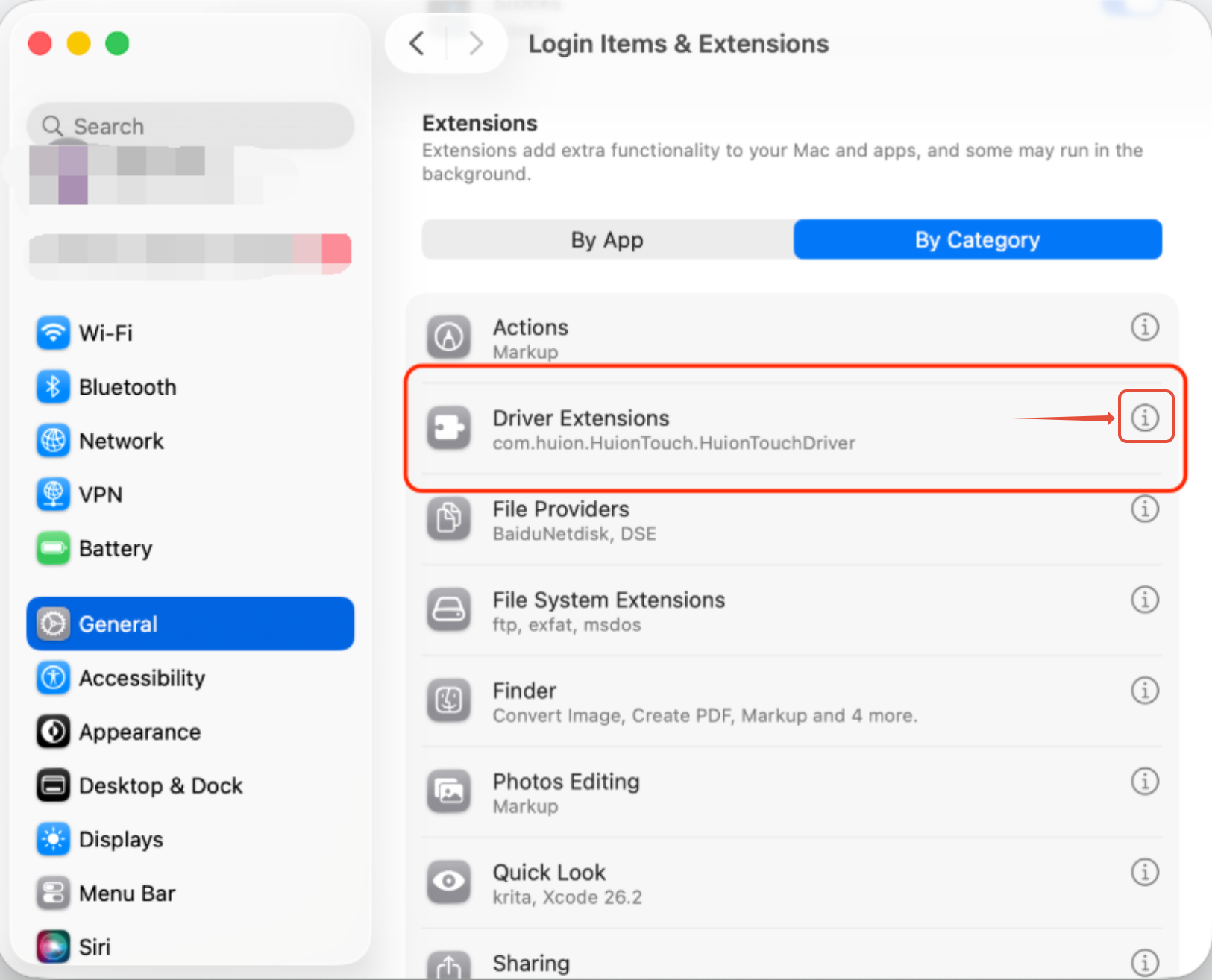
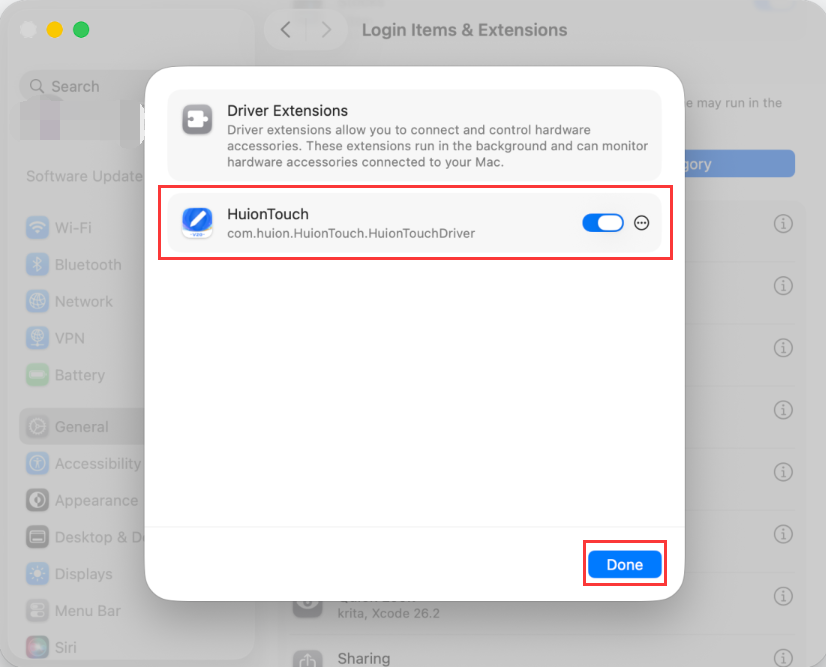
NOTE: If you accidentally click "OK", please go to System Settings > General > Login items & Extensions > Driver Extensions ("i") > enable HuionTouch > then click Done.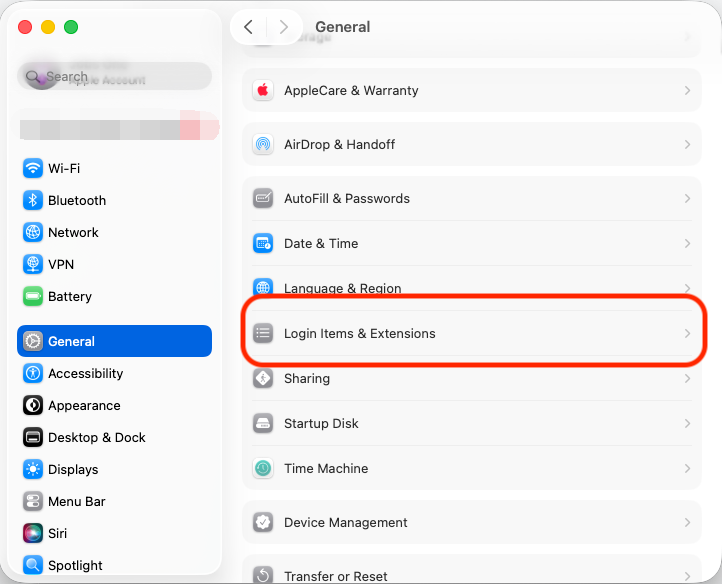
- Special Situation - for Mac mini/Mac Studio/iMac
If you are using a Mac mini/Mac Studio/iMac and have updated to macOS 14.5 or later, you may encounter an issue where touch cannot be enabled because the device lacks built-in touch-related hardware. In this case, you need to perform the following additional steps:- Locate the LoadTrackPad2.zip file included in the installation package and extract the LoadTrackPad2 tool.
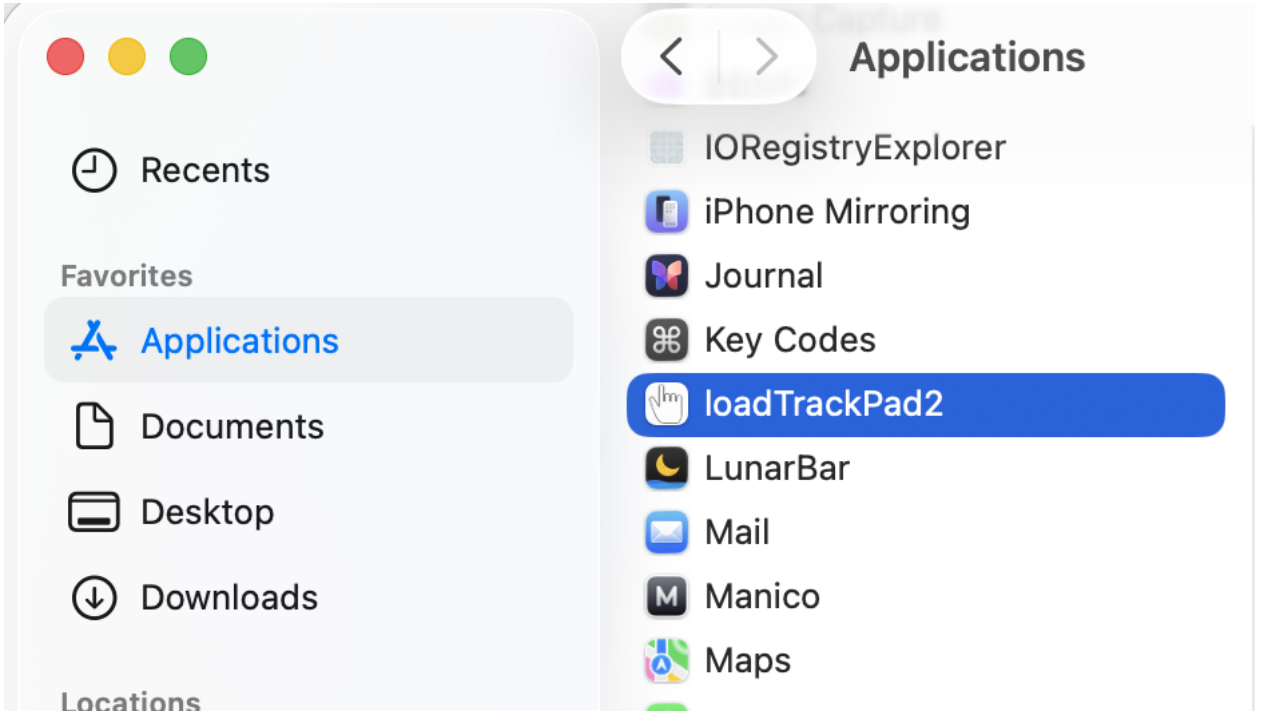
- Open the installation, then drag it into the "Applications" folder.
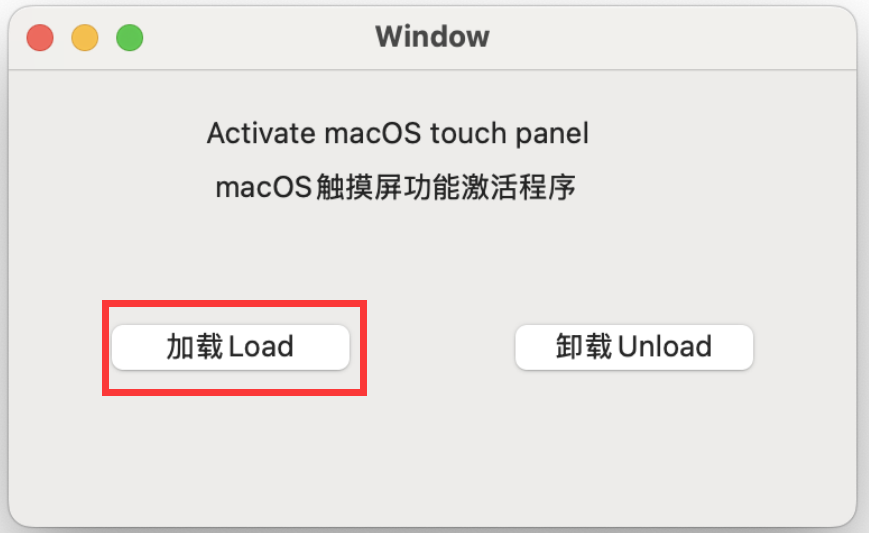
- When a pop-up window appears, click "Load".
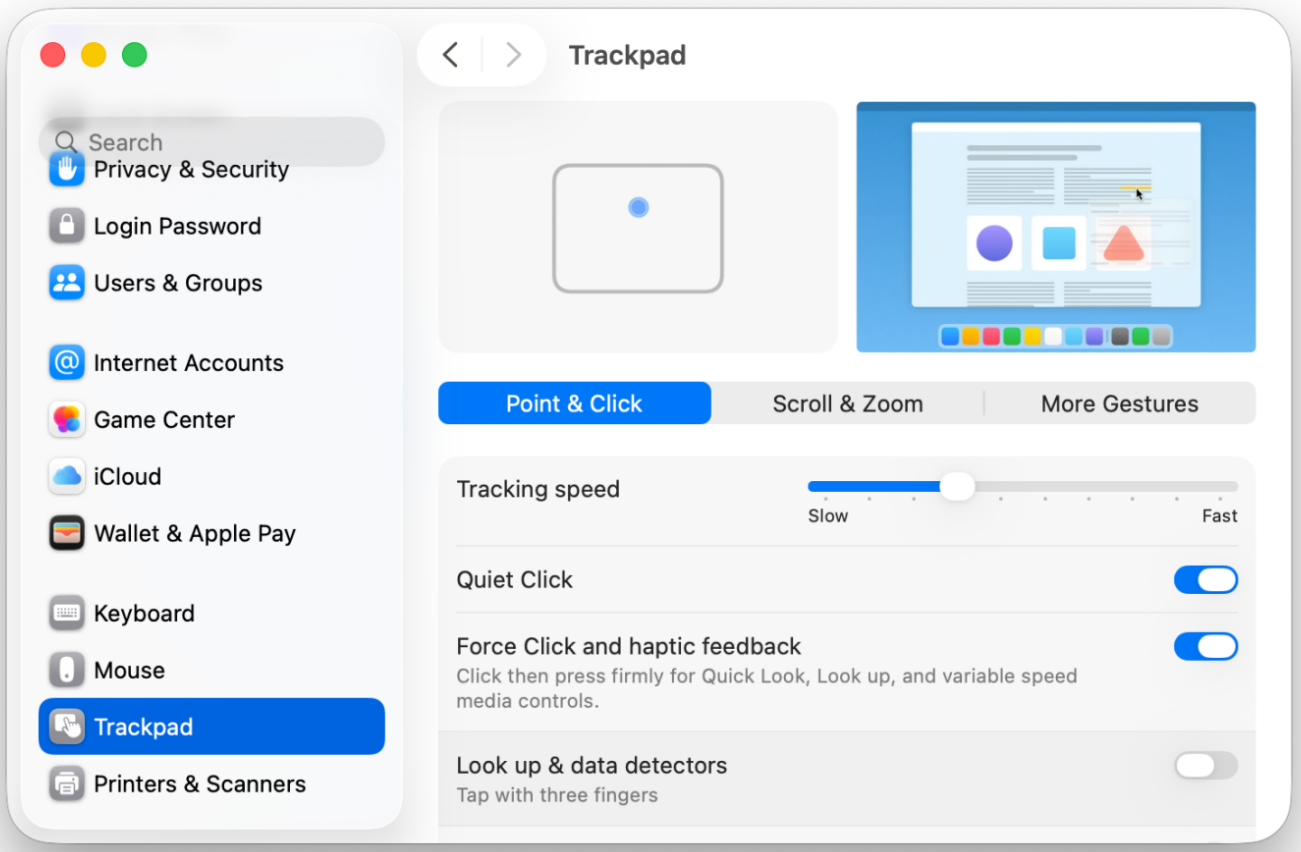
- After the activation, if you see the "Trackpad" option in the "System Settings / Preferences", it means the activation was successful.