
This FAQ explains the current status of Wayland support in the Linux driver, known limitations, and recommended solutions.
Because Wayland support varies across Linux distributions and desktop environments, some behaviors may differ depending on your system.
Does the Linux driver support Wayland?
- Yes. The Huion driver now supports the Wayland protocol:
HuionTablet_LinuxDriver_v15.0.0.179.x86_64.deb. - However, due to incomplete or inconsistent Wayland protocol implementations across different desktop environments, several known issues may occur. These issues are described below along with their solutions.
Known Issues & Solutions
- Issue 1 – Double Cursor Appears When Using Mouse‑Related Functions
- Symptoms
- Two mouse cursors appear on the screen
- Cursor position follows the system mouse instead of the pen
- Occurs when using:
- Mouse mode
- Left / right / middle click
- Double‑click
- Scroll wheel (forward/backward)
- Cause
- Most Wayland compositors do not implement the Virtual Keyboard and Virtual Pointer protocols.
- As a result, the pen can move the system cursor, but Wayland does not update the actual mouse position, causing a second cursor to appear.
- Reference: https://wayland.app/protocols/wlr-virtual-pointer-unstable-v1#compositor-support
- Solution
- To prevent this issue, the driver currently disables all mouse‑related functions under Wayland.
- After disabling these functions, the double‑cursor problem no longer occurs.
- Symptoms
- Issue 2 – Work Area Screenshot Flickers When Setting the Work Area
- Symptoms
- When opening the Work Area settings, the desktop screenshot may flash briefly
- The flash occurs when the screen content changes
- Cause
- Different Linux distributions provide different levels of support for real‑time screen capture under Wayland.
- To ensure compatibility, the driver uses the system’s built‑in screenshot tool to capture the desktop.
- Impact
- The brief flash is normal and does not affect Work Area configuration.
- Symptoms
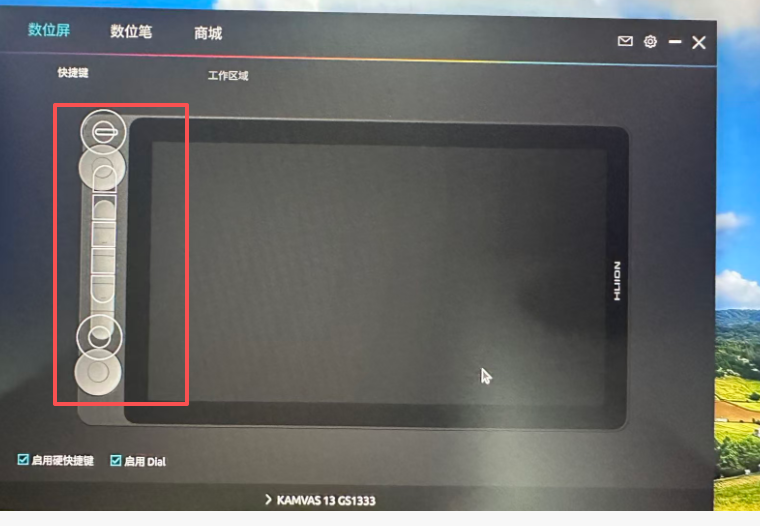
- Issue 3 – Shortcut Keys UI Appears Disordered After Shutdown/Restart (Occasional)
- Example Screenshot
- Symptoms
- After restarting the computer, the Shortcut Keys interface on the pen display may appear visually incorrect or misaligned
- Cause
- This is an occasional system‑side rendering issue.
- Solution
- Restarting the driver restores the correct UI layout.
- Example Screenshot
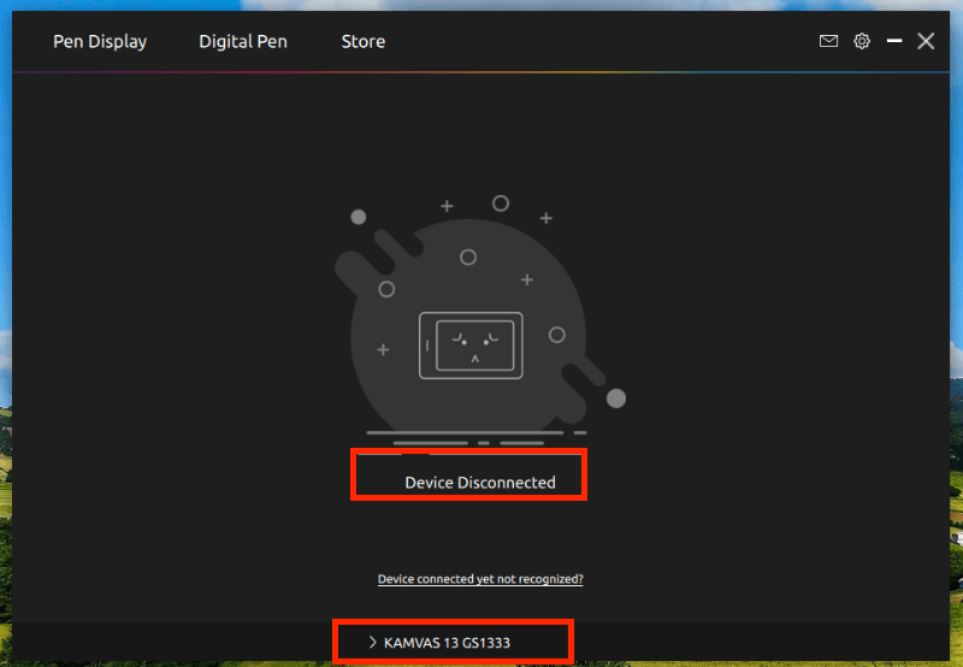
- Issue 4 – Pen Display Shows “Device Disconnected” After Restart, Even Though the Driver Detects the Device (Occasional)
- Example Screenshot
- Symptoms
- The pen display interface shows “Device Disconnected”
- The driver window still displays the correct device name (e.g., KAMVAS 13 GS1333)
- The device is actually connected and functional, but the UI is incorrect
- Cause
- This is an occasional system‑side issue related to how Wayland reports device status after reboot.
- Solution
- Restart the driver to restore normal display.
- Example Screenshot
- Issue 5 – Pen Click Does Not Respond After Setting Work Area Rotation (90° / 180° / 270°)
- Symptoms
- After rotating the screen in the Work Area settings, pen clicks may stop responding
- Cause
- This is an occasional system‑related issue.
- Solution
- Restarting the driver resolves the problem.
- Symptoms
How to Restart the Linux Driver
You can restart the driver in two ways:
- Option 1 – Exit and Reopen the Driver
- Use the driver’s menu and select Exit, then open the driver again.
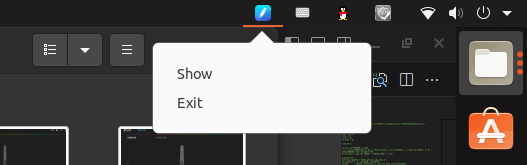
- Use the driver’s menu and select Exit, then open the driver again.
- Option 2 – Restart via Terminal
- Run the following commands:
- sudo killall huiontablet
- sudo killall huionCore
- sudo killall huiontablet
- Then reopen the driver application.
- Run the following commands: