
When connecting the Kamvas Pad 12 to a computer via USB, the tablet may initially show "Charging the device via USB" instead of allowing file access. To browse and transfer files, you must switch the USB connection mode to File Transfer.
Windows
- Connect the Kamvas Pad 12 to your Windows computer using a USB cable. If you're using a non-Huion cable, ensure it's a data cable, not just a charging cable.
- When the taskbar displays "Charging the device via USB", click that notification.
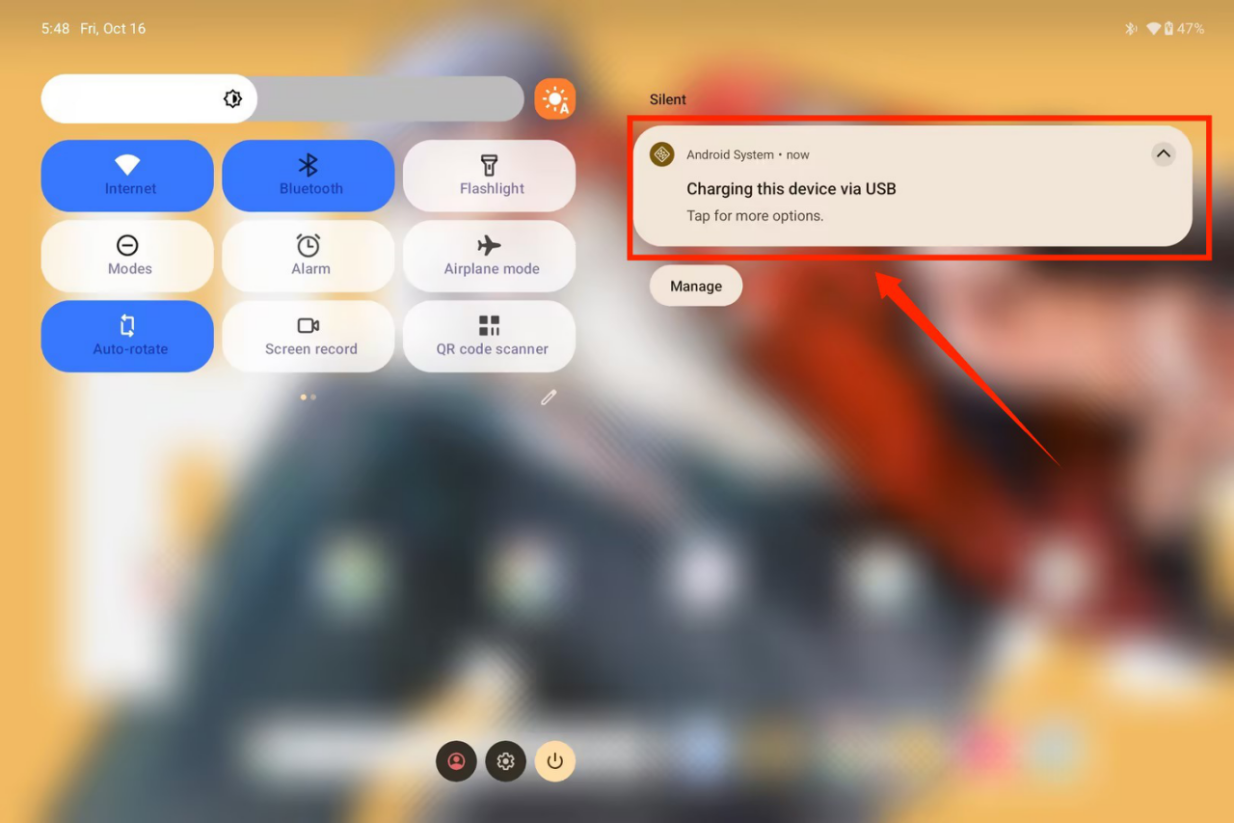
- In the USB settings screen, go to USB Preferences.
- Under Use USB for, select File Transfer.
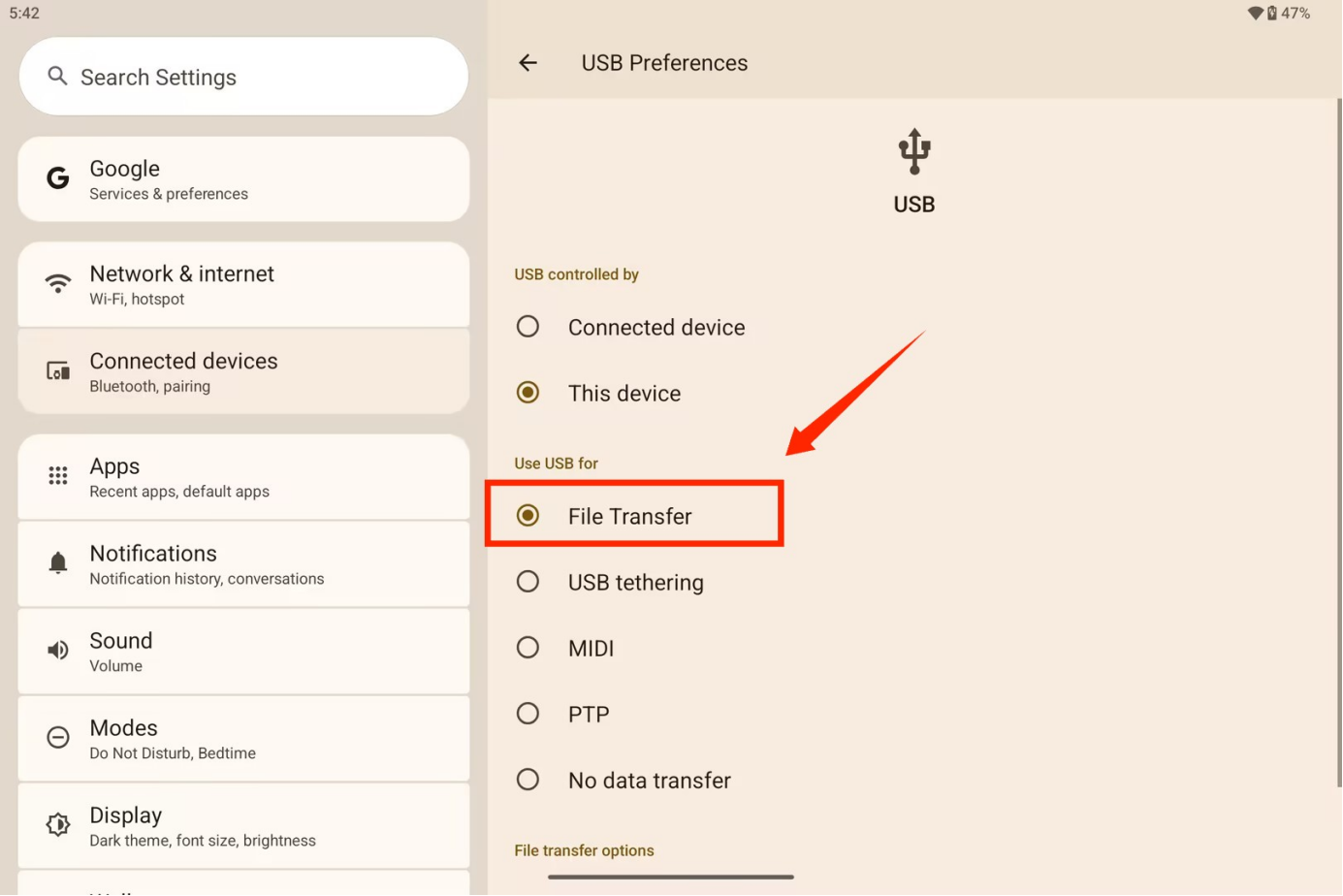
- The computer should now be able to browse and transfer files to/from the Kamvas Pad 12.
Mac
File transfer to a Mac requires installing a third-party application on the Kamvas Pad 12.
- Install the required third-party file transfer app on the Kamvas Pad 12.
- Connect the Kamvas Pad 12 to the Mac using a USB-C connection.
- On the Kamvas Pad 12, open USB Preferences.
- Under Use USB for, select File Transfer.
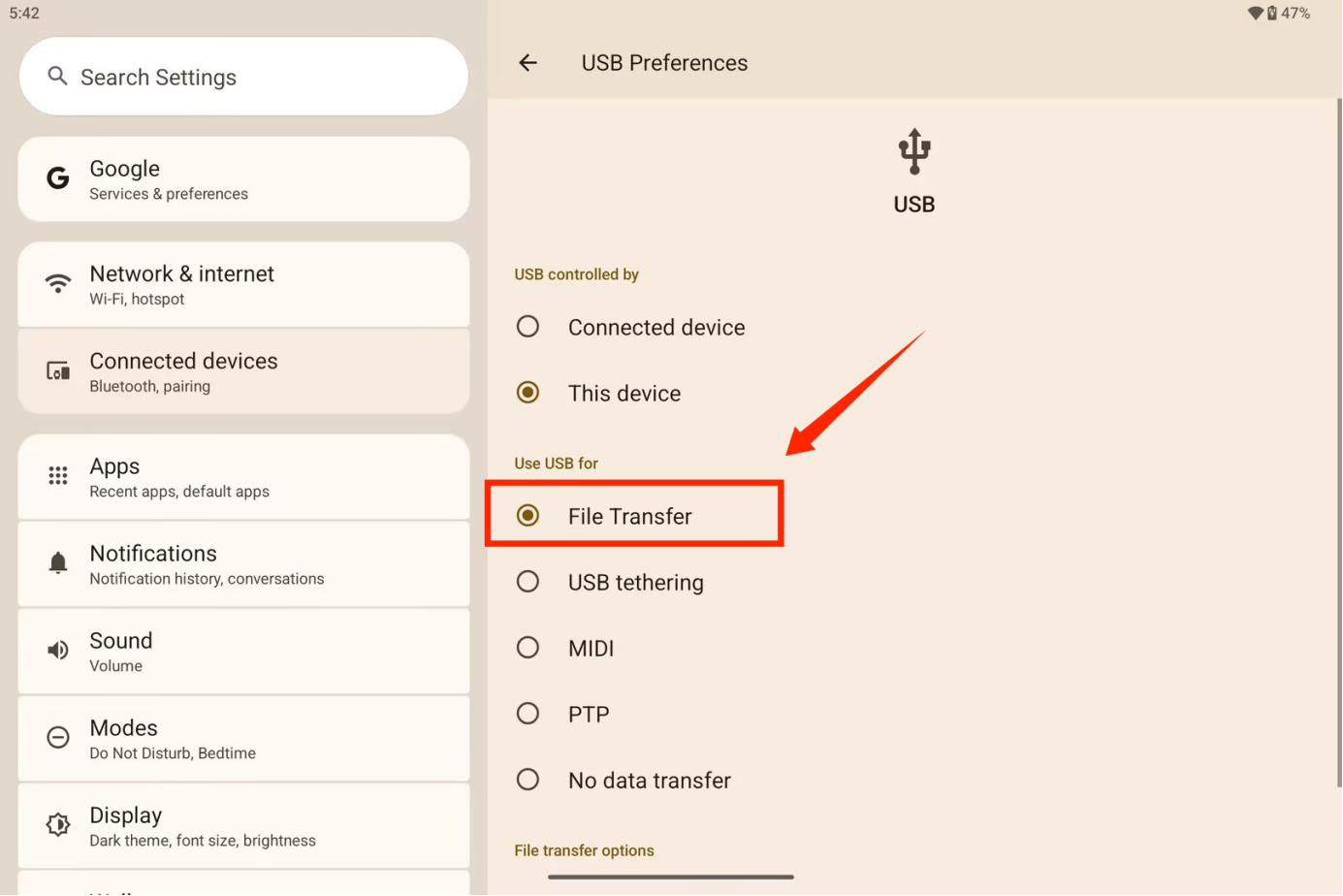
- Use the installed third-party app to browse and transfer files between the Kamvas Pad 12 and the Mac.
- Another option for Mac is to use a cloud sync (such as iCloud or Google Drive) or a microSD card for moving files.
Notes
On Windows, the USB connection may first appear only as charging. Change it to File Transfer through the notification/USB Preferences.
On Mac, changing Use USB for to File Transfer is also required, in addition to using a third-party app on the Kamvas Pad 12.