
If you see the message "This device isn't certified by Google Play Protect", follow the steps below to register your device and restore access to Google Play services.
Method 1: Register Your Device (Recommended First Step)
- Open Settings on your device.
- Go to System > Google Device Registration.
- Tap Copy to copy your GSF ID.
- Tap the link to open the Google registration webpage.
- Log in using your Google account.
- Paste the GSF ID into the field and submit it to complete certification.
If the page crashes when you tap "Copy and open webpage."
Try clearing Chrome's cache:
- Open Settings > Apps.
- Find and long‑press Chrome.
- Tap App info.
- Go to Storage & cache.
- Tap Clear cache.
- Try the certification process again.
If you continue experiencing crashes or the Google certification continues to fail, try performing a system update: How to Perform a System Update on the Huion Note E (X50) for Improved Performance and Bug Fixes.
Additional Troubleshooting Steps (If the above methods still don't work)
If the issue continues, follow these steps:
- Step 1 — Register your device using another phone or computer
- On another device, log in with the same Google account you use on your Huion Note E.
- Visit: google.com/android/uncertified.
- On your Huion Note E, go to Settings > System > Google Device Registration.
- Copy the GSF ID shown there.
- On the other device, enter the GSF ID into the Google registration page and submit.
- Step 2 — Clear Google Play Services & Play Store data on your Huion Note E
- On your Huion Note E, open Settings > Apps.
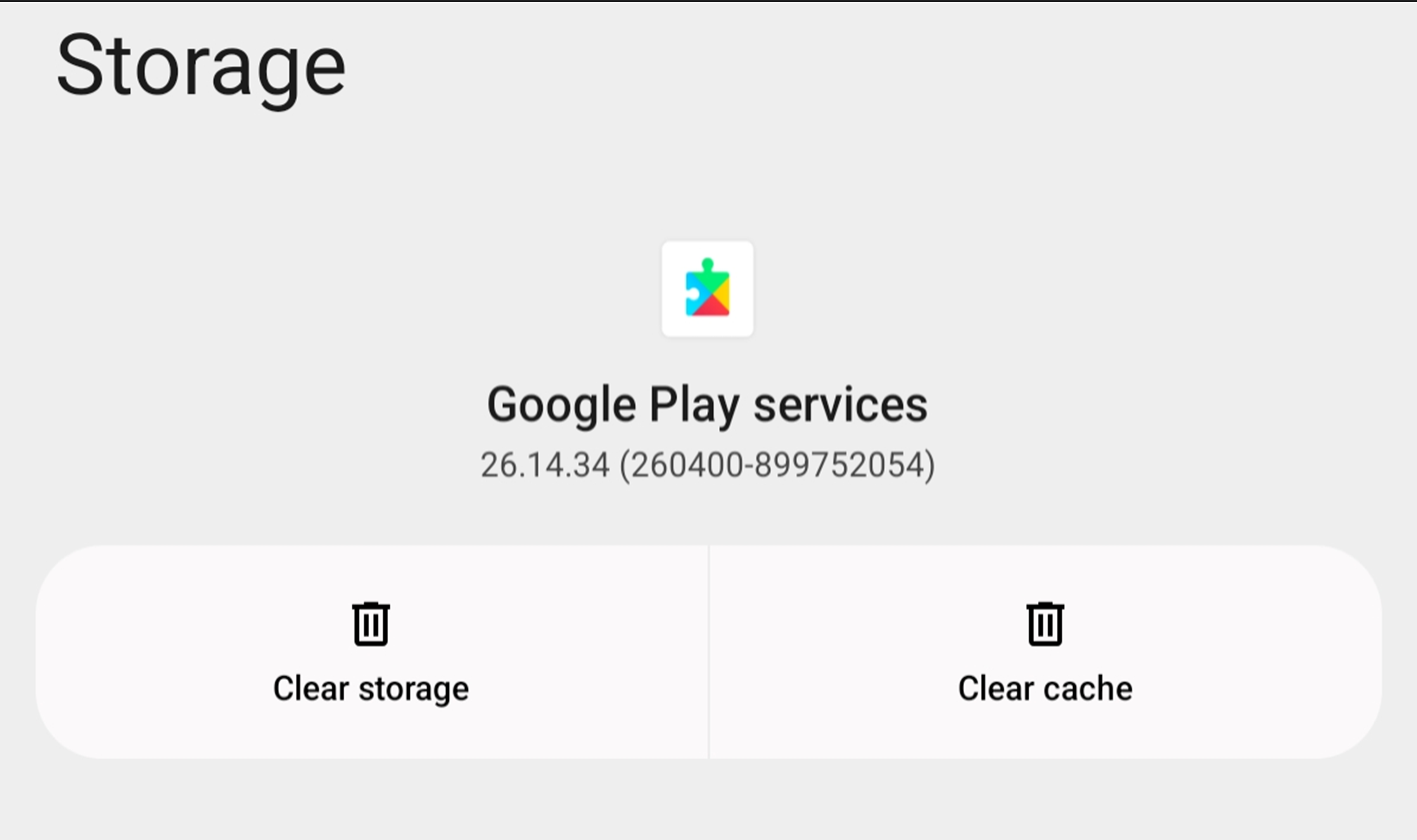
- Select Google Play Services.
- Tap Storage & cache.
- Tap Clear cache and Clear storage.
- Go back and select the Google Play Store.
- Again, tap Clear cache and Clear storage.
- Step 3 — Restart and log in again
- Reboot your Huion Note E.
- Open the Google Play Store.
- Sign in again with your Google account.